Back to "Index of Help Topics"
Streaming audio/video quality can be affected by connection rate and Internet congestion. Also:
- Make sure not to download applications or files while watching/listening to media streams.
- Close other unnecessary applications that may be open on your computer.
- Our streaming video requires a broadband Internet connection of at least 500kbps, such as Cable Modem, T1 or fast DSL. Dial-up and Wireless Air cards will not give the optimum viewing experience with the new WM 1Mbps replay files.
Optimize Your Video Speed using Windows Media Player:
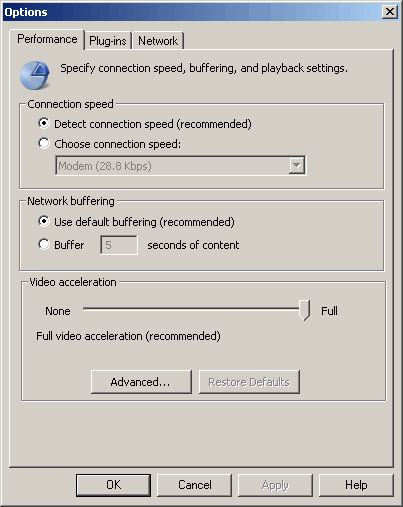
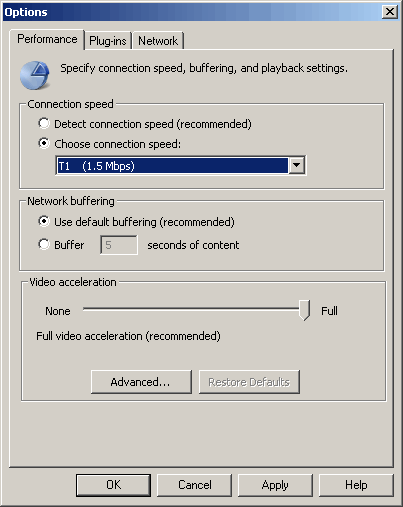
Please make sure the performance settings for your Windows Media player are set to the values below to prevent connection detection problems.
To confirm or change these settings, click on a race replay from Today’s Replays, once the video begins, right click anywhere within the video window.Go to Options › Performance tab in your Windows Media Player.
- Set the Connection Speed to automatically detect the connection speed, or if choosing a speed set to T1.5mbps
- Set Network Buffering to set use default buffering.
- Set video acceleration to full (recommended)
- If during playback you only hear the audio but do not see video on your Windows Media Player.
You may be using an older Window Media Player.
To check your version, on your player go to Help › About Windows Media Player. If your version is not Windows Media Player 9 or higher click here to download the latest version.
- If the video on your Windows Media Player looks choppy or pauses during playback, it could be due to Internet congestion or video card settings.
Turn down (or turn off) video acceleration. To do this go to Tools › Options, and go to the Performance tab.
Adjust the setting under the dialog box Video Acceleration.
Check for updates to your video card driver at the manufacture's website.
Optimize Your Video Speed using RealPlayer:
- Pick a race replay
- Right click on the video screen
- Choose 'Play in RealPlayer'
- On the Real Media Player top toolbar click on 'Tools › Preferences'
- On the far left, Click on 'Connection'
- Choose 'Network Transports'
- Check 'Manually configure connections setting'
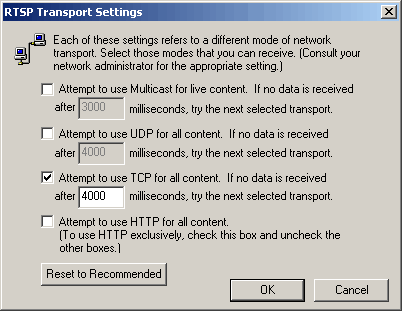
- Click on 'RTSP Settings'

- Do not check the box:
- 'Attempt to use multicast for live content'
- 'Attempt to use UDP for all content'
- 'Attempt to use HTTP for all content
- Do check the box:
- 'Attempt to use TCP for all content'
- Click on 'OK'
- Click again on 'OK'
- Close the 'Pop Up' (second) RealPlayer window
- You may now pick a race replay
|